4-Digit PIN Locks Your ChatGPT Chats. Forget It, Lose Them All
ChatGPT now lets you hide chosen conversations behind a 4-digit account PIN. It is handy on shared phones and laptops, but it is not encryption, and resetting the PIN deletes every locked chat.
You hand your phone to a cousin to show a photo, and ChatGPT is open in the background. Your chat about a loan, a health worry or a surprise gift is one tap away.
OpenAI's new fix is a 4-digit PIN. But there is a catch most people will miss: forget that PIN, and resetting it permanently deletes every chat you locked.
Quick answer
- ChatGPT's new Locked chats feature hides chosen conversations from your history, pinned chats and search, behind a 4-digit account PIN or Face ID, Touch ID or device unlock.
- It is rolling out on Free, Go, Plus, Pro, Business, Enterprise and Edu plans, so it may not show up for you yet.
- It is a privacy screen, not a vault: OpenAI says it adds no end-to-end encryption and does not change retention or training settings.
- Resetting a forgotten PIN wipes all locked chats, their files and locked-only memories, and Support cannot recover them.
What Locked chats actually do
OpenAI announced the feature on Tuesday and listed it in its release notes for October 20, 2026. The Hindu and TechCrunch both reported the rollout.
Once you lock a chat, it leaves your regular chat history, pinned chats and normal search. It moves to a dedicated Locked chats section inside the Projects menu.
To open it, you enter your 4-digit account PIN. On supported phones you can use Face ID, Touch ID or another device unlock method instead.
You can lock chats you already have, not just new ones. That matters, because most sensitive conversations already exist.
OpenAI pitches it for moments when you are discussing something personal or planning a surprise, and you need to hand your device to friends or family.
How to lock a chat, step by step
According to DigitBin's walkthrough of OpenAI's help pages:
- Open the chat and tap the more options menu (•••).
- Select Lock chat and confirm.
- The first time, create a PIN of four digits and enter it twice.
- Find the chat later under Projects, then Locked chats.
The PIN belongs to your OpenAI account, not a workspace. So it works on every supported device where you are signed in.
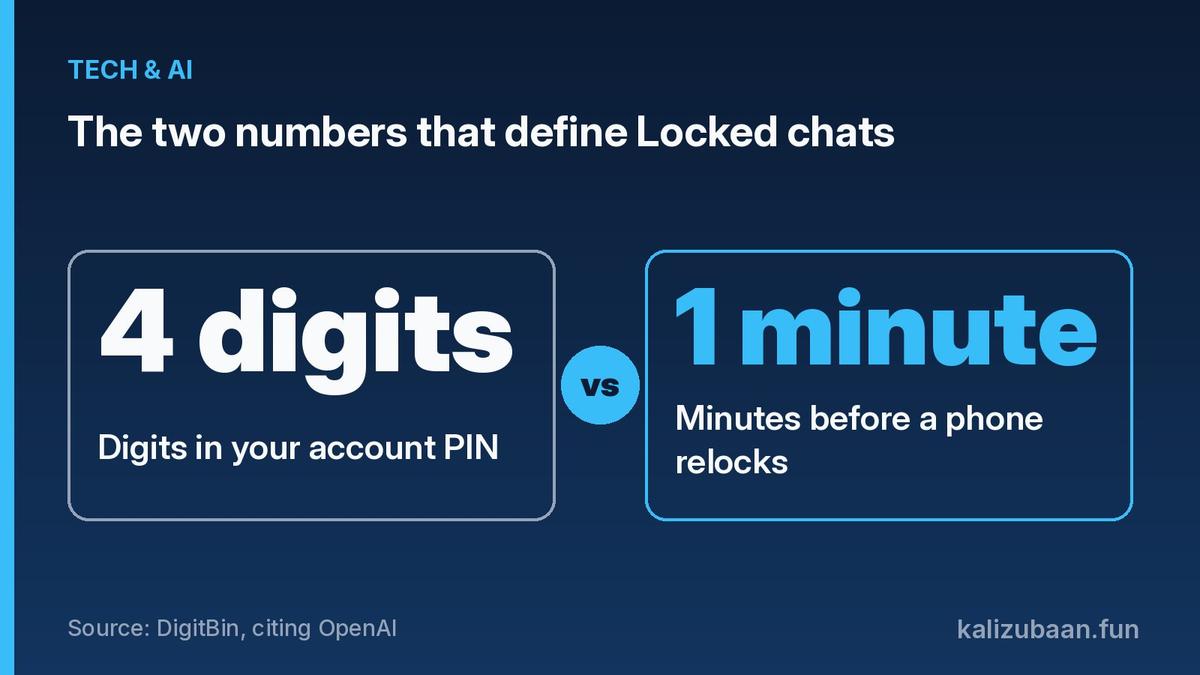
Access is short. On the web it ends when you select Lock now, refresh or close the tab. On iPhone and Android it ends after one minute away from the locked area, or one minute in the background.
Source: DigitBin, citing OpenAI
What Locked chats do not protect
This is the part to read twice. TechCrunch notes that locking a chat doesn't create end-to-end encryption or a separate encrypted vault.
It also doesn't change how long OpenAI retains the chat. It doesn't remove what ChatGPT remembered before you locked it. And it doesn't change your "Improve the model for everyone" setting.
In other words, a locked chat is stored and used like any other chat. It just stays out of sight on your screen.
A few more gaps from DigitBin and The Hindu:
- Shared links stay live. Locking a chat that already has a shared link does not delete the link. Delete the link separately.
- Ads may still appear in locked chats if ads were already available on your account.
- Android screenshots may come out blank or black, because the app hides protected content.
- Workplace admins can still see logs. On Enterprise and Edu workspaces, locked chats still appear in message logs on the OpenAI Compliance Platform.
How memory works inside locked chats
With Memory turned on, the Locked chats section gets its own separate memory, shared across conversations inside that section.
New messages sent after locking can update that locked memory, but they don't update your regular Memory. So details from a locked chat won't leak into a normal chat later.
DigitBin adds that locked chats can still read your regular Memory. And if you unlock a chat, the whole conversation may feed regular Memory if your settings allow it.
Chats you cannot lock
Not every conversation qualifies. You cannot lock temporary chats, archived chats, group chats, chats created from a shared link, chats with scheduled tasks, or chats with meeting recordings.
Codex conversations are also out. And the feature is not available on ChatGPT for Healthcare.
Locking a chat also removes it from its project. It loses that project's instructions, files and memory, so a chat that depends on project context may become less useful.
The forgotten PIN problem
Resetting your PIN permanently deletes all locked chats, files and other content protected by the old PIN. DigitBin says this also covers memories stored only in locked chats, and OpenAI Support cannot recover any of it.
On the web, the reset sits under Settings, then Security and login, then Account PIN. The confirmation button reads "Reset PIN & Delete" on web, desktop and Android, or "Delete all and reset" on iOS.
So do not pick a PIN you will forget. Store it in a password manager, not just in your head.
Should Indian users turn it on?
For many Indian homes, phones and laptops are shared between siblings, parents and kids. A lock that hides a chat from casual eyes is genuinely useful there.
It also helps if you screen-share during college presentations or office calls and don't want an old chat title to pop up.
Just be clear about the limits. If your worry is what OpenAI stores, not who can see your screen, locking does not solve it. The safest habit is still to avoid typing very sensitive details, like full bank or Aadhaar numbers, into any chatbot.
FAQs
Is ChatGPT Locked chats free? Yes. OpenAI lists it for the Free plan as well as Go, Plus, Pro, Business, Enterprise and Edu.
Does locking a chat encrypt it? No. OpenAI says it does not create end-to-end encryption or a separate encrypted vault.
What happens if I forget my PIN? You can reset it, but that permanently deletes all locked chats and their protected content.
Why can't I see the Lock chat option? The rollout is gradual. If Lock chat is missing from the ••• menu, your account has not received it yet.
Sources
Tagged Topics
Keep reading



Thanks for reading Kali Zubaan
Explore more articles in Tech & AI or return to the main publication feed.